


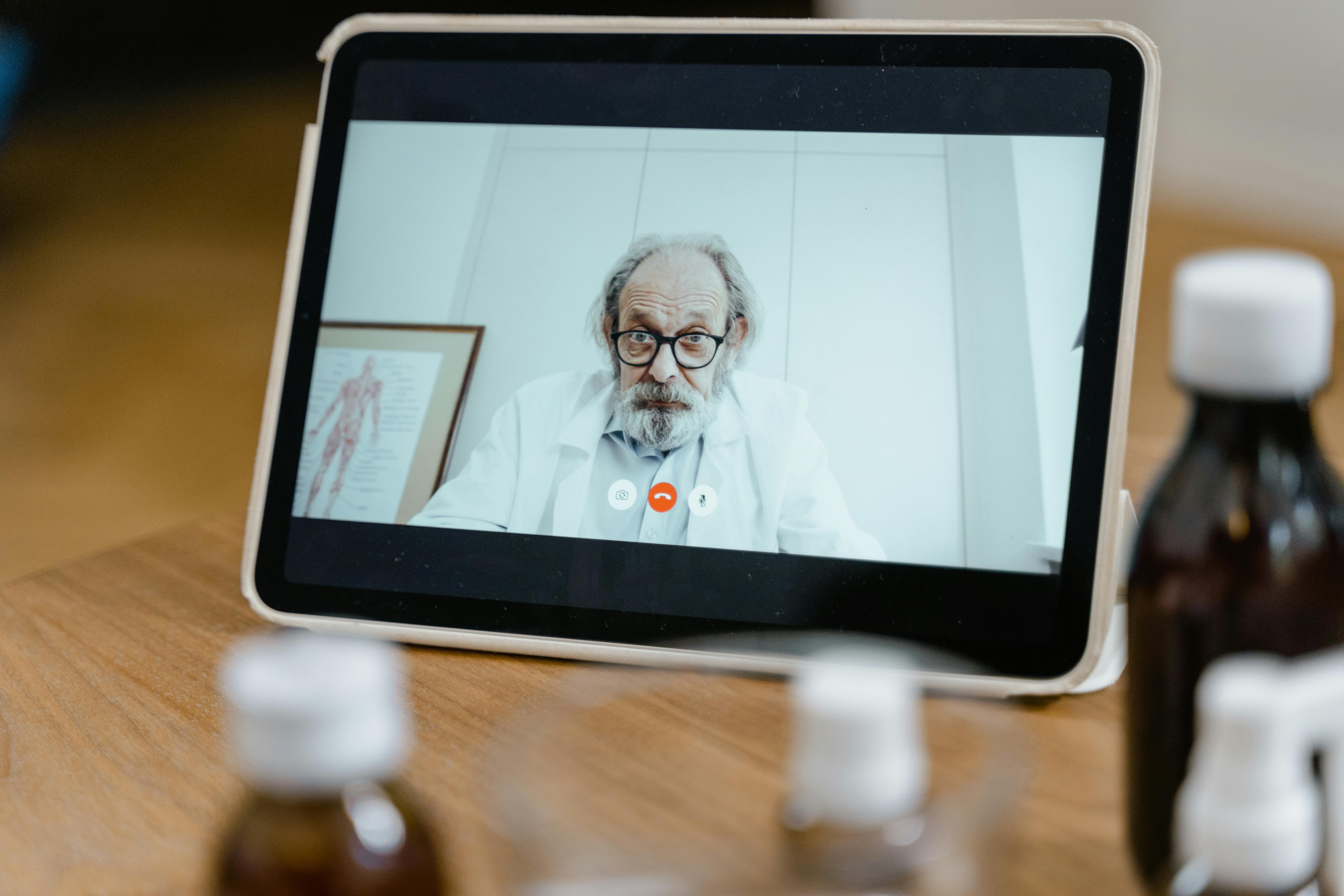
The stethoscope is held up to the camera. The patient is asked to turn their head and cough. A rash is examined through a 2-inch window on a laptop screen. For millions of patients and practitioners, the video call has become the new waiting room.
Nothing erodes trust in a clinical relationship faster than a frozen frame, robotic audio, or a pixelated image that obscures a critical diagnosis.
Remote consultations are no longer a novelty; they are a cornerstone of modern healthcare delivery. However, the technology facilitating these visits often becomes a barrier rather than a bridge.
A lagging video stream can turn a routine follow-up into a frustrating exercise in miscommunication. For the healthcare professional, technical failures are not just inconvenient; they can compromise the standard of care.
Understanding the Root Cause: It’s Not Just "Bad Internet"
Before reaching for a wrench, one must understand the machine. Poor video quality in remote consultations is rarely the result of a single issue.
It is typically a confluence of bandwidth limitations, hardware inadequacies, and software misconfigurations. Attributing a frozen call solely to "bad Wi-Fi" is an oversimplification that prevents effective troubleshooting.
The Bandwidth Bottleneck
Video calling is essentially the process of sending thousands of images (frames) per second over the internet. This requires a stable pipeline of data. The required speed, or bandwidth, is measured in Megabits per second (Mbps).
- Standard Definition (SD): Requires 1–3 Mbps.
- High Definition (720p): Requires 3–5 Mbps.
- Full HD (1080p): Requires 5–8 Mbps.
The issue is not always the speed of your connection but its stability (latency and jitter). High latency causes delays, while jitter (inconsistent packet delivery) causes freezing and artifacts.
Hardware Constraints
A modern telehealth platform can only perform as well as the hardware it runs on. Using a five-year-old laptop with an integrated webcam often results in poor low-light performance and grainy images, regardless of internet speed.
Practical Fixes for Crystal-Clear Consultations
To move from a pixelated mess to a clinical-grade video feed, healthcare providers must address three distinct areas: the network, the hardware, and the software environment.
1. Optimizing the Network Environment
This is the most critical step. A fortified network is the foundation of any successful telemedicine program.
Wired Over Wireless: The Ethernet Advantage
While Wi-Fi offers convenience, it is susceptible to interference from neighboring networks, microwave ovens, and physical obstructions. For a fixed consultation room, an Ethernet connection is non-negotiable.
- The Fix: Connect your computer directly to the router via a Cat6 Ethernet cable. This eliminates packet loss and provides the lowest possible latency.
- Why it works: Wired connections provide full, dedicated bandwidth without the radio frequency interference inherent to Wi-Fi.
Quality of Service (QoS) Configuration
For clinics operating on a single network used for patient records, email, and video calls, network congestion is inevitable. This is where Quality of Service settings on a router become invaluable.
- The Fix: Access your router’s settings (usually via an IP address like 192.168.1.1) and locate the QoS settings. Prioritize traffic to the specific ports used by your telehealth platform (e.g., UDP ports for Zoom, Doxy.me, or Vidyo).
- Why it works: QoS tells the router to treat video call data packets as "VIPs," ensuring they are delivered first, even if someone else on the network is downloading a large file.
Managing the "Bandwidth Vampires"
During a consultation, the patient’s connection is largely out of the provider's control, but the provider's end must be pristine. Any background application consuming bandwidth will choke the video feed.
- The Fix: Before a call, open Task Manager (Windows) or Activity Monitor (Mac). Force quit applications like Dropbox, Google Drive, or Windows Update that may be syncing large files in the background.
- Why it works: It frees up the maximum amount of bandwidth for the real-time, two-way communication required for the video call.
2. Hardware Upgrades That Matter
Relying on the built-in components of a standard laptop is a common pitfall. Investing in purpose-built hardware elevates the professional appearance and diagnostic capability of the consultation.
The External Webcam and Lighting
Integrated laptop webcams have tiny sensors that struggle in anything less than perfect daylight.
- The Fix: Invest in a high-quality external webcam with a larger sensor, such as those from Logitech's Brio series or consumer-grade 4K options. Pair this with a simple ring light placed directly behind the monitor.
- Why it works: A larger sensor captures more light, reducing digital noise (grain). Ring lights provide "catch lights" in the eyes and eliminate harsh shadows that can obscure facial expressions and skin conditions.
Audio is Half the Experience
Viewers will tolerate a slightly blurry video longer than they will tolerate choppy or echoey audio. Poor audio leads to repeated questions and consultation fatigue.
- The Fix: Ditch the laptop microphone. Use a USB condenser microphone (like a Blue Yeti or a simpler dynamic mic) for rich, warm audio, or high-quality noise-canceling headphones (like the Sony WH-1000XM series or Bose QuietComfort) to prevent echo.
- Why it works: Dedicated microphones have better analog-to-digital converters and directional pickup patterns, focusing on the speaker's voice and filtering out ambient clinic noise (typing, hallway chatter).
3. Software and Platform Optimization
The choice of platform and how it is configured can make or break a session.
Platform Selection
Not all telehealth platforms are created equal. Some are optimized for low-bandwidth environments, while others prioritize high-fidelity video.
- The Fix: Use platforms specifically designed for healthcare (like Doxy.me, Zoom for Healthcare, or Updox) rather than consumer-grade apps like FaceTime or standard Skype. These platforms are HIPAA-compliant and often have better codec efficiency.
- Why it works: Healthcare platforms utilize advanced video compression algorithms (codecs like H.264 or H.265) that maintain quality while using significantly less data than standard consumer apps.
Browser vs. Application
Many telehealth platforms run in a web browser. However, browsers are resource hogs.
- The Fix: Use the dedicated desktop application for the platform if available. If a browser is required, use a "clean" browser like Google Chrome or Brave with all extensions disabled.
- Why it works: Desktop applications have direct access to hardware resources (GPU encoding), whereas browsers operate in a sandboxed environment, often throttling performance.
Real-World Case Studies
Theory is important, but application proves value. Here are three scenarios where technical intervention significantly improved clinical outcomes.
Case Study 1: The Rural Dermatology Clinic
The Problem: Dr. Evans, a dermatologist in a rural catchment area, struggled to diagnose skin lesions via video. Patients would send photos taken on phones, but live video was always too pixelated to see the fine details of moles or rashes.
The Intervention: The clinic implemented a "patient preparation" protocol. Patients were sent a one-page PDF guide before their appointment. It instructed them to use a 4G/5G connection instead of rural DSL Wi-Fi, to sit near a window for natural light, and to hold their smartphone horizontally in landscape mode, 12 inches from the affected area.
The Result: Diagnostic confidence rose from approximately 65% to over 90%. The combination of better patient-side lighting and stable 4G connectivity allowed for high-resolution close-ups that were previously impossible.
Case Study 2: The Metropolitan Mental Health Practice
The Problem: A group of therapists reported that sessions felt disconnected. Patients frequently complained that the therapists looked "robotic" or that the audio would cut out during emotional moments, breaking rapport.
The Intervention: An IT audit revealed that the therapists were using the practice’s guest Wi-Fi. The solution involved two parts:
- Installing a dedicated mesh Wi-Fi 6 system in the therapists' wing to handle high traffic.
- Providing each therapist with a high-quality wired headset (Sennheiser PC 8 USB) to ensure crystal-clear audio capture and delivery.
The Result: Session continuity complaints dropped by 95%. Therapists reported a significant improvement in reading emotional cues and maintaining the therapeutic alliance virtually.
Case Study 3: The Large Hospital Network’s Triage Line
The Problem: A major hospital network used a tele-triage system for stroke assessment. During critical "code stroke" calls, video lag was causing delays in administering life-saving medication protocols.
The Intervention: The network’s IT team implemented a dedicated VLAN (Virtual Local Area Network) for the telemedicine carts in the ER. They also upgraded the upload bandwidth specifically for those machines and implemented QoS routing to prioritize UDP traffic for their specific telehealth vendor.
The Result: Near-zero latency during critical calls. The technical reliability allowed the stroke team to perform the NIHSS (National Institutes of Health Stroke Scale) assessment remotely with the same confidence as in person, shaving critical minutes off the "door-to-needle" time.
Common Fixes vs. Professional Solutions
| Issue Area | The "Quick Fix" (Consumer Grade) | The Professional Solution (Clinical Grade) |
|---|---|---|
| Wi-Fi Stability | Move closer to the router. | Install a Mesh Wi-Fi 6 system or use a Powerline Ethernet adapter for a wired connection. |
| Video Quality | Use the built-in laptop webcam. | Invest in a 4K external webcam (e.g., Logitech Brio) with manual focus and exposure control. |
| Audio Clarity | Use standard earbuds with a mic. | Use a dynamic USB microphone or professional noise-canceling headset (e.g., Jabra Evolve 80). |
| Lighting | Sit in a bright room. | Use a 3-point lighting setup or a high-CRI ring light to eliminate shadows. |
| Network Prioritization | Close browsers and tabs. | Configure Quality of Service (QoS) on the router to prioritize video call traffic. |
| Platform Choice | Use standard Skype or FaceTime. | Use a HIPAA-compliant platform optimized for low bandwidth (e.g., Doxy.me or Zoom for Healthcare). |
Maintaining Trust Through Technical Reliability
In the healthcare sector, trust is the currency of the realm. When a patient logs on for a consultation, they are vulnerable. They need to feel heard and seen. Technical glitches introduce a psychological barrier; they make the patient feel like they are talking to a machine rather than a caregiver.
By implementing the technical fixes outlined above, healthcare providers do more than just improve pixels and audio samples. They communicate a message of preparedness and respect. A seamless video call allows the provider to focus entirely on the patient's symptoms and concerns, rather than being distracted by a spinning wheel or a frozen screen.
It is also worth noting the importance of cybersecurity in this ecosystem. As you optimize your hardware, ensure your network remains secure. Using outdated routers with default passwords negates the trust built by a great video call.
Regular firmware updates and strong, unique passwords for Wi-Fi networks are non-negotiable components of a trustworthy practice.
For guidelines on securing your home or clinic network for patient data, the HealthIT.gov website provides excellent checklists for privacy and security practices. Read more at HealthIT.gov.
Conclusion
The shift to remote healthcare is permanent. However, the tools used must evolve to meet the demands of clinical rigor. By treating the video call not as a simple chat but as a critical diagnostic instrument, providers can reclaim the intimacy and accuracy of the in-person visit.
The journey from a pixelated screen to a clear, reliable connection is a technical one, but its rewards are purely human: better communication, more accurate diagnoses, and stronger patient relationships. Don't let a poor connection be the weak link in your chain of care.