


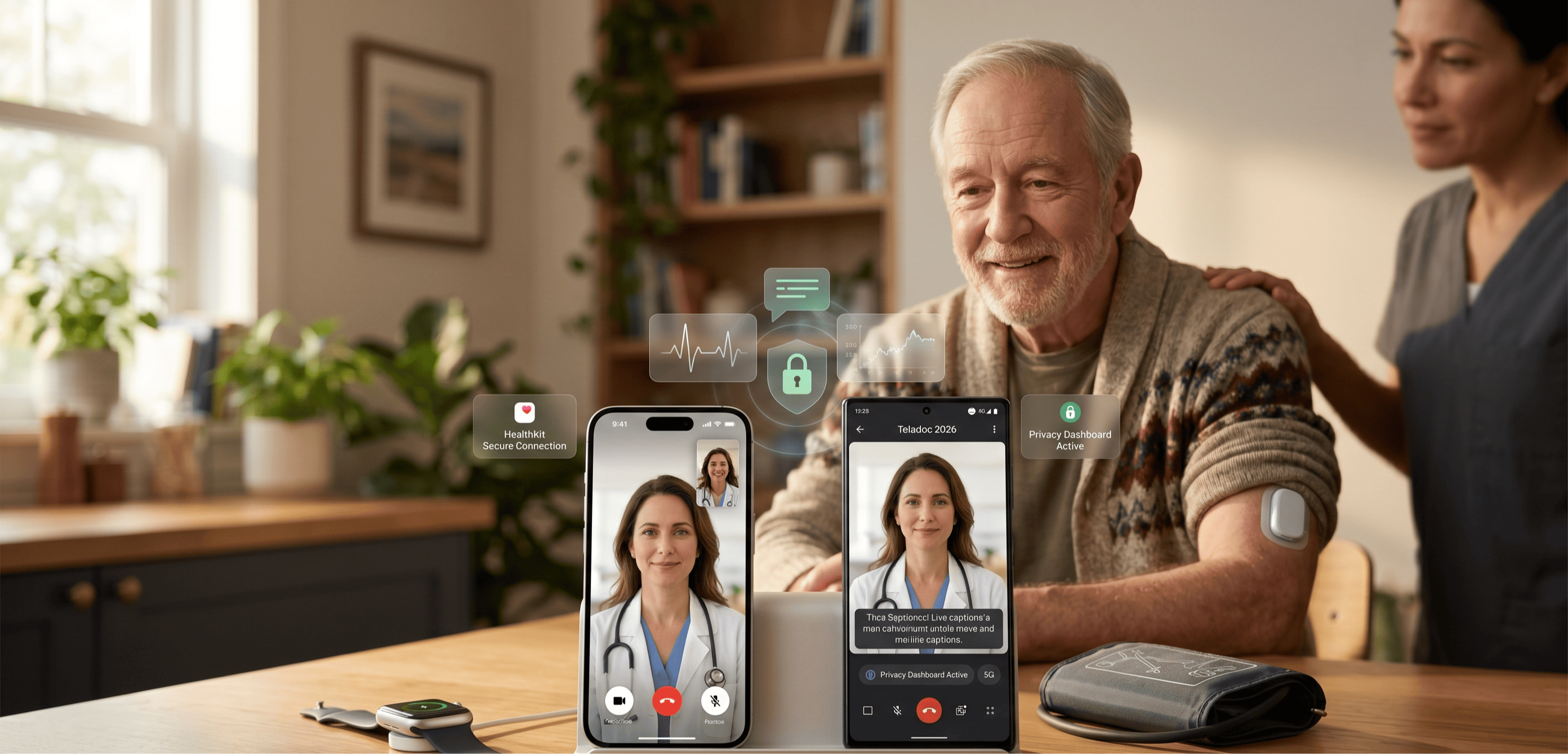
The iPhone remains the more reliable choice for telehealth in 2026 due to its consistent software updates and stricter privacy standards, but Android is the better pick if you rely on a wide range of budget-friendly wearable health monitors.
While both types of phones can handle a video call, the choice between them affects how easily you can share your vitals with a doctor and how secure your private medical data stays.
Why does the phone in your pocket change your doctor visit?
When you use a phone for a video visit, you are asking it to do several hard things at once: run a high-definition video feed, process your voice without echo, and often, pull data from a watch or a blood pressure cuff. Because Apple makes both the phone and the software, iPhones are generally more stable during these high-stress tasks.
If you use a flagship Android like the Samsung Galaxy S26 or a Google Pixel 10, you will get a similar level of power, but the "budget" Android phones sold for under $300 often struggle with the heavy data loads required by modern apps like Epic MyChart or Teladoc.
The gap between these two systems mostly shows up in "fragmentation," which is a fancy way of saying there are too many different kinds of Androids for app developers to keep up with. When a company builds a telehealth app, they test it on every iPhone because there are only a few models.
They cannot test it on all 2,400 different Android models. This is why an app might work perfectly on your daughter’s Samsung but crash every time you try to open the "waiting room" on your Motorola.
The camera you already have is probably good enough
By 2026, even a basic smartphone camera has enough resolution for a doctor to look at a throat or a skin rash. However, the way the phone handles color and focus matters more than the number of megapixels.
iPhones are known for "natural" color processing, which is vital if you are showing a dermatologist a suspicious mole or a bruise. Some Android phones tend to "beautify" or smooth out skin textures by default, which can actually hide the very details a doctor needs to see.
If you are using an Android, it is worth checking your camera settings before a call to make sure "Face Retouching" or "Beauty Mode" is turned off. On an iPhone, the software handles this more conservatively, usually giving the doctor a more accurate view of your skin tone and any inflammation.
The Centers for Disease Control and Prevention (CDC) notes that clear visual information is one of the most important factors in a successful remote diagnosis, so anything that distorts the image is a hurdle you don't need.
Who actually sees the data you send over your phone?
Privacy is where the two systems diverge the most. Apple’s "HealthKit" is built so that your health data is encrypted on your device; even Apple cannot see it without your passcode. This is a huge win for patients who are worried about their insurer or an employer getting a peek at their heart rate or sleep patterns.
Google has made big strides with its "Health Connect" system on Android, but because Google’s business model is built more around data, some users feel less certain about where that information ends up.
Most major telehealth apps are required to be HIPAA-compliant, which means they follow the federal rules set by the U.S. Department of Health and Human Services (HHS) for protecting patient privacy.
However, HIPAA usually applies to the app and the doctor, not necessarily the operating system of the phone itself. If you use an iPhone, you have a "Privacy Report" in your settings that tells you exactly which apps have accessed your microphone or camera in the last week. Android has a similar "Privacy Dashboard," but it can be harder to find and more confusing to read on certain brands of phones.
Comparing the big two for health tasks
| Feature | iPhone (iOS) | Android |
|---|---|---|
| App Reliability | Very high; apps rarely crash mid-call. | Varies; high on flagship phones, lower on budget models. |
| Ease of Use | High; same interface on all models. | Moderate; menus change depending on the brand. |
| Medical Devices | Works best with "Apple-certified" gear. | Works with almost any Bluetooth medical device. |
| Accessibility | Best-in-class screen readers and voice control. | Better live-captioning for the hearing impaired. |
| Battery Life | Consistent through long video calls. | Excellent on large "Ultra" or "Pro" models. |
What is actually happening when you open that app?
When you click the link for your appointment, your phone has to negotiate a "handshake" between your internet connection and the hospital's server. This is where 5G-Advanced technology, which became standard in 2025 and 2026, comes into play. iPhones from the 15 Pro onwards and Androids with the newest Snapdragon chips handle these handshakes faster, meaning you spend less time looking at a spinning "loading" icon.
A common headache happens when the app asks for permission to use your microphone. On an iPhone, this is a single, clear pop-up. On some Android phones, you might have to dig through three layers of settings to "Allow while using the app."
This is where many patients get frustrated and give up. If you are helping an older family member, the iPhone is usually the better choice simply because there are fewer places for them to get lost in the menus.
The part where most people give up too early
Take the story of Arthur, a 72-year-old in Florida who was trying to use a new Android tablet for his post-surgery checkup. Everything seemed fine until the doctor joined the call. Arthur could see the doctor, but the doctor couldn't see him. He spent ten minutes tapping the screen, getting more and more worked up, until his blood pressure was likely higher than it was after his surgery.
The problem wasn't the tablet; it was a small "overlay" setting that many Android apps use. Arthur eventually switched to his old iPhone 14, and because the interface was familiar and the permissions were simpler, the call worked in thirty seconds.
This isn't because Android is "bad," but because it offers more ways to customize the experience, which also means more ways for things to go wrong if you aren't a "tech person." If your goal is to just have the call work the first time, every time, the iPhone’s restricted, simpler system is a safety net.
How does your phone talk to your other medical gear?
If you use a continuous glucose monitor (CGM) like a Dexcom or a smart blood pressure cuff, the way your phone connects via Bluetooth is vital. Android is generally more "open," meaning it will play nice with a wider variety of cheaper, off-brand medical devices. You can go to a pharmacy, buy a $40 Bluetooth pulse oximeter, and it will almost certainly work with a Google Pixel.
Apple is more "closed." While the big brands like Omron or Withings work perfectly with iPhones, some smaller or cheaper brands might struggle to sync with the Apple Health app. However, once an iPhone is connected, the connection tends to be "stickier"; it doesn't drop as often.
Medicare.gov has expanded coverage for "Remote Patient Monitoring" in 2026, meaning your doctor might actually be paid to look at the data your phone collects. If you plan to use these features, check if your specific medical device has a "Made for iPhone" badge on the box; if it doesn't, you might have an easier time with an Android.
Hearing and seeing your doctor more clearly
For patients with hearing loss or vision impairment, the choice between these two phones is a big deal. Android’s "Live Caption" feature is arguably the best in the world. It can put text on the screen for any audio, including a live video call with a doctor, in real-time. This is a lifesaver if you are in a noisy room or if your doctor speaks quickly.
iPhone has "Live Captions" too, but it is still technically in a beta-testing phase for some languages as of early 2026. However, Apple’s "VoiceOver" screen reader is the gold standard for people who are blind or have low vision.
It describes what is on the screen more fluently than Android’s "TalkBack" system. If you struggle to hear, a high-end Android like a Google Pixel might be your best friend. If you struggle to see the screen, the iPhone's accessibility suite is likely the better tool.
Keeping your battery from dying mid-exam
Video calls are "battery killers." They use the screen, the camera, the microphone, and the 5G radio all at once. In 2026, many doctors' offices have moved to 4K video for better detail, which drains power even faster. A twenty-minute appointment can easily eat 15% of your battery.
Android phones, particularly the larger ones like the Galaxy S26 Ultra, often have much bigger batteries than the standard iPhone. If you are someone who forgets to plug in their phone or if you have several back-to-back appointments, that extra battery capacity can be the difference between finishing your visit and having your phone go black while the doctor is explaining your prescription.
Always aim to have at least 30% battery before you enter a virtual waiting room, regardless of which phone you use.
What to do when the screen freezes?
If your video freezes during a call, don't panic and don't start pressing every button. Most of the time, the app has just run out of "memory," or the internet signal dipped for a second. On an iPhone, the best move is to swipe up to close the app and then immediately tap the link in your email or text to re-enter.
On an Android, you have a more powerful tool: the "Clear Cache" button. If an app is acting up, you can go to Settings > Apps > [App Name] > Storage and tap "Clear Cache."
This wipes out the "temporary junk" that might be clogging the app without deleting your login information. It is a one-minute fix that solves about 90% of technical glitches on Android devices.
One thing worth doing before you close this tab
Open your phone's app store right now, the App Store on iPhone or the Google Play Store on Android—and search for the app your doctor’s office uses, such as MyChart, FollowMyHealth, or Healow. If there is an "Update" button next to it, tap it immediately.
Running an outdated version of a health app is the number one reason calls fail, and taking sixty seconds to update it today ensures you won't be scrambling and stressed five minutes before your next appointment.
Disclaimer: This article is for informational purposes only and does not constitute medical, legal, or financial advice. Always consult a qualified healthcare provider, licensed attorney, or certified financial advisor before making decisions about your health, insurance, or medical care.