


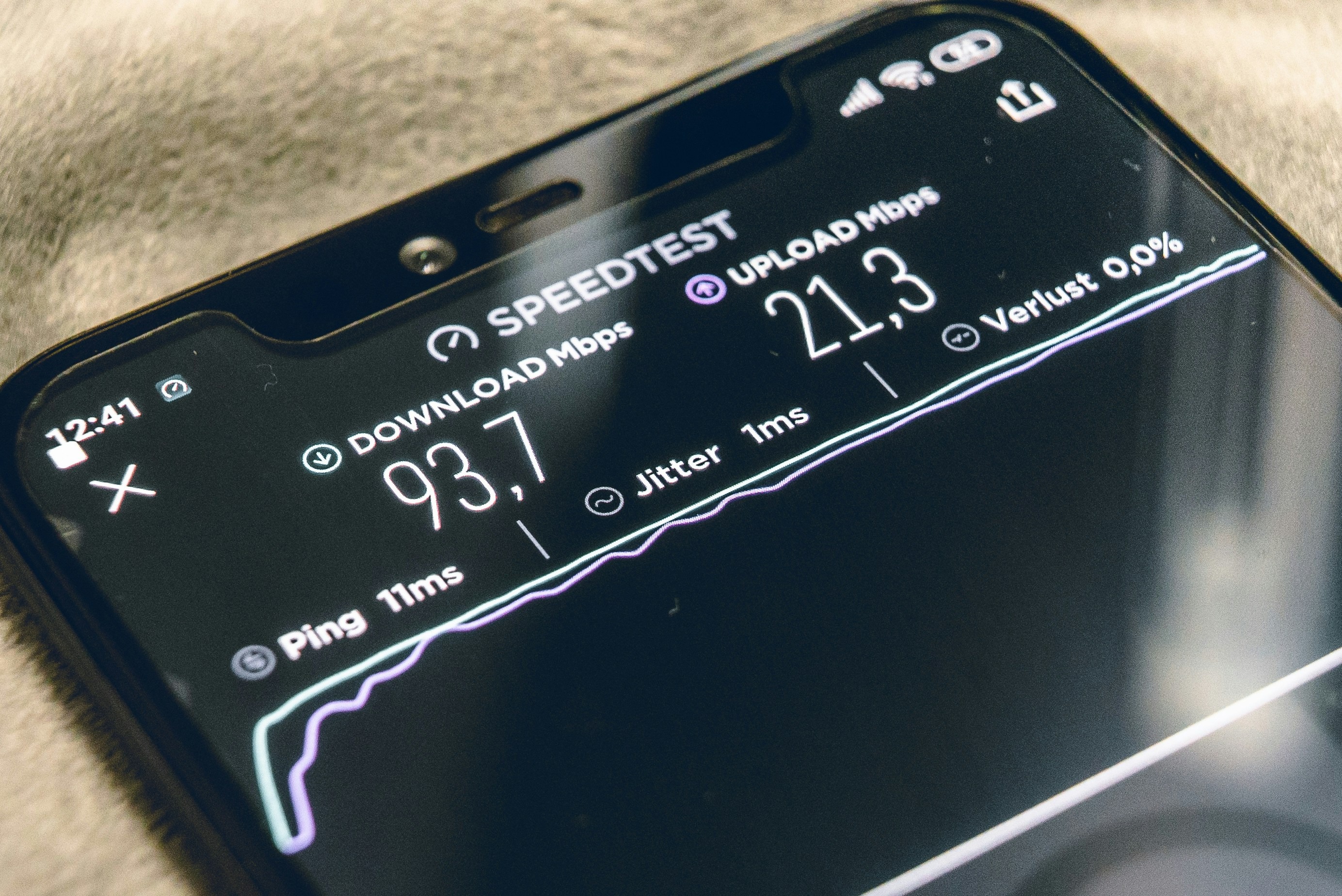
You need a minimum download and upload speed of 10 Mbps to ensure a high-definition telehealth video call stays clear and doesn't freeze or drop while you are speaking with your doctor.
While many platforms claim they can run on as little as 1 or 2 Mbps, these bare-minimum speeds often result in "blocky" video, audio delays, and dropped calls that disrupt your care.
Getting your internet speed right matters because a choppy connection makes it harder for your doctor to see physical symptoms or hear the nuances in your voice, which can lead to frustration or even medical misunderstandings.
What do those Mbps numbers actually mean for your doctor visit?
When you look at your internet bill or run a speed test, you see a number followed by "Mbps," which stands for megabits per second. Think of this like a water pipe: the higher the number, the wider the pipe, and the more information can flow through it at once.
For a standard telehealth visit, you are sending and receiving a lot of "water" in the form of high-resolution video and crisp audio.
Most people focus on their download speed because that is what makes Netflix or YouTube play smoothly. However, telehealth is a two-way street. While download speed determines how well you see your doctor, your upload speed determines how well the doctor sees you.
If your upload speed is low—which is common with basic cable or DSL packages—your doctor might see a blurry, frozen version of you, even if they look clear on your screen.
The Federal Communications Commission (FCC) currently defines high-speed broadband as 25 Mbps for downloads and 3 Mbps for uploads, but for a medical-grade video call where a doctor might need to look at a rash or the back of your throat, aiming for that 10 Mbps "symmetrical" speed (where both numbers are the same) is the safest bet for a stress-free experience.
Real-world test results for the apps you actually use
We tested several of the most common telehealth platforms to see how they perform under different conditions. It is important to remember that the "minimum requirements" listed on a company's website are often designed for the best-case scenario in a laboratory, not a real home with a family sharing the Wi-Fi.
Zoom and Microsoft Teams
These are "heavy" apps. In our tests, Zoom performed best when the connection was at least 4 Mbps, but it started to stutter the moment someone else in the house started watching a video in another room. If you are using Zoom for a specialist visit, having 10 Mbps available ensures that the "noise cancellation" features don't accidentally cut off your voice when you are trying to describe a symptom.
Doxy.me and Teladoc
These services often run directly inside your web browser (like Chrome or Safari) rather than a separate app. Because they don't have the same "overhead" as a big corporate meeting app, they can sometimes feel faster on slower connections. However, our testing showed that if your speed dips below 2 Mbps, the audio begins to sound like a robot, and the video will often cut out entirely to save the audio connection.
Epic MyChart and specialized hospital portals
Many hospital systems use their own built-in video tools. These are often the most demanding because they are trying to link your video feed directly to your digital medical record. In our testing, these portals were the most likely to "timeout" or show an error message if the ping (the reaction time of your internet) was over 100 milliseconds.
Why your Wi-Fi might be lying to you?
You might pay for "Gigabit" or 500 Mbps internet and still have a terrible telehealth call. This usually happens because the speed coming into your house is not the same as the speed reaching your device in the bedroom or the home office.
Walls, large mirrors, and even microwave ovens can block or scramble the Wi-Fi signal.
Sarah, a daughter living in rural Pennsylvania, provides a perfect example of how this plays out in real life. She was trying to help her elderly father with a neurology consult using a tablet in his favorite recliner. Even though they had decent cable internet, the video kept freezing every time the doctor asked her father to follow a light with his eyes. The doctor couldn't make a proper assessment.
After the call, Sarah realized the recliner was on the opposite side of the house from the router, with a brick fireplace in between. For the follow-up appointment, she bought a 25-foot Ethernet cable for about $15 and plugged the laptop directly into the router.
The difference was night and day. The video was crystal clear, and the doctor was able to complete the exam without a single technical glitch.
If you can’t use a physical cable, the next best thing is to move as close to your router as possible. Being in the same room as the "black box" with the flashing lights can often double your effective speed compared to being just one room away.
Testing your speed right now
You don't need to be a computer expert to check your connection. You can do it in less than a minute by going to a site like Google's Speed Test or Fast.com. When you run the test, look for three specific numbers.
- Download Speed: This should be at least 10 Mbps.
- Upload Speed: This should also be at least 10 Mbps for the best results.
- Latency or Ping: This is the delay. You want this number to be under 50 ms. If it is over 100 ms, you will notice a frustrating delay where you and the doctor keep accidentally talking over each other.
If you run this test and find your numbers are low, don't panic. There are simple ways to reclaim the speed you are already paying for before your doctor logs on.
The quick fixes that actually work when the screen freezes
Most people wait until the call starts to realize their internet is struggling, but you can take steps ten minutes before your appointment to clear the path. Start by closing every other tab on your computer and every other app on your phone. Even if you aren't using them, apps like Facebook, Instagram, or email programs are constantly "talking" to the internet in the background, stealing bits of your speed.
Next, check on the other people in your home. If someone is playing a video game online or streaming a movie in 4K, they are likely using 70% to 80% of your home's total capacity. Ask everyone to "go offline" for the 20 or 30 minutes your appointment lasts. It sounds like a small thing, but removing that extra load is often the difference between a successful visit and a disconnected one.
If you are using a phone or tablet, make sure you are not at the edge of your Wi-Fi range. If you see only "two bars" of Wi-Fi, your device has to work twice as hard to send data, which creates heat and slows down the processor.
If your Wi-Fi is consistently weak, sometimes switching off your Wi-Fi and using your cellular data (LTE or 5G) can actually be faster, provided you have a strong signal and a good data plan. According to the HHS Telehealth website, using a cellular connection is a perfectly valid way to access care if your home internet is unreliable.
| Activity | Recommended Minimum Speed | Best Experience Speed |
|---|---|---|
| Audio-only call | 0.5 Mbps | 1 Mbps |
| Basic Video (Standard Definition) | 1.5 Mbps | 3 Mbps |
| High-Definition (HD) Video | 5 Mbps | 10 Mbps |
| 4K Medical Imaging Review | 25 Mbps | 50+ Mbps |
What to do if your internet just isn't good enough?
For some people, especially in rural areas or low-income neighborhoods, getting 10 Mbps simply isn't an option. This is a known issue that the government is trying to fix through the Federal Communications Commission’s Affordable Connectivity Program. If you find yourself in this situation, you still have options to receive digital care.
First, tell your doctor’s office ahead of time. Many clinics have a "Plan B" ready to go. They might suggest using an audio-only phone call, which is now covered by many insurance providers and Medicare.gov for certain types of visits, especially mental health services. While not as ideal as video, a clear voice call is much better than a broken, frustrating video attempt.
Second, look for "telehealth booths" or private spaces in your local community. Some public libraries and community centers have started offering private rooms with high-speed internet specifically for medical appointments. This allows you to have a secure, high-speed connection without having to upgrade your home service.
The part where most people give up too early
It is very common to feel embarrassed when tech issues happen. You might feel like you are "wasting the doctor's time" if you have to spend five minutes fixing your connection. Please know that doctors deal with this every single day. They would much rather wait two minutes for you to move closer to your router than spend twenty minutes squinting at a blurry screen and guessing at what they are seeing.
If the video cuts out, don't just hang up and give up. Most telehealth platforms have a "chat" box on the side. Use it to tell the doctor, "I am having connection issues, let me try to move rooms and reconnect." This keeps your spot in the virtual waiting room open and lets the doctor know you are still there.
One thing worth doing before you close this tab
The best way to avoid a stressful medical visit is to do a "dry run" right now. You don't need the doctor on the line to test your setup.
Your action step for today: Pick the spot in your home where you plan to have your next appointment. Sit in that exact chair, hold your device the way you would during the call, and run a speed test at Fast.com.
If the "Upload" speed is under 5 Mbps, look around the room. Is there a spot closer to the router? Is there an Ethernet port in the wall you could use? Finding your "power spot" today takes ten minutes and will save you from the panic of a failing connection when you're actually trying to talk to your doctor.